Free trial
Find your creative flow.
$0 to get started
Try the studio before choosing your plan.
- Screen and camera recording
- Explore the editing timeline
- Try Motion Studio
- 5 free exports
One native Mac workflow
Capture the screen, camera, microphone, and system audio. Then refine the same recording with zoom, motion, privacy tools, and layouts made for product stories.
Explore the toolkit

Set the background to None and export with an alpha channel — ProRes 4444 (.mov) for Final Cut, Premiere, and After Effects, or VP9 (.webm) for the web.

Smoothly zoom the screen toward important UI so viewers follow the story—without jumpy cuts or a separate motion tool. Editable zoom keeps attention on what matters after capture, so tutorials, demos, and launch videos read clearly on a single macOS timeline—no round-trip to another editor for pacing.

Make pointer movement and clicks easy to read on screen captures—ideal for product demos and engineering walkthroughs. Highlight the cursor for training and sales recordings; clearer click feedback means you spend less narration repeating where to look on the interface.
Remove the webcam background in the editor after capture for a clean talking-head cutout on macOS. Creavit Studio skips gimmicky real-time virtual backgrounds while you record. When you are done, strip the backdrop from the camera clip in-editor and ship a crisp subject silhouette in the final export.

Resize and position the webcam against the screen so the layout matches demos, tutorials, or talking-head moments. Switch layout presets and balance camera size with screen real estate—one coherent frame for onboarding clips, changelog videos, and creator content without leaving the recorder.

Add depth and editorial framing so flat UI captures feel closer to polished product marketing—not a raw screen grab. Perspective-style framing helps interface storytelling read intentional: viewers track hierarchy faster, which matters for SaaS launches, changelog videos, and investor-ready demos.

Drop titles, callouts, and code context next to the interface for tutorials, walkthroughs, and product explainers. Deliver context when viewers need it—not after they are lost. Layer readable emphasis for developer content so narration, cursor, and text reinforce the same beat.

Stack graphics, short clips, and supporting visuals wherever the edit needs them—without a separate compositing app. Bring reactions, logos, and motion layers into frame while keeping the screen readable. The result feels closer to branded product video than a flat capture.

Present the recording inside device frames and presentation-ready compositions for social posts and documentation. Wrap the timeline in a consistent mockup language for social and docs so every ship keeps the same professional line—from capture through export on macOS.

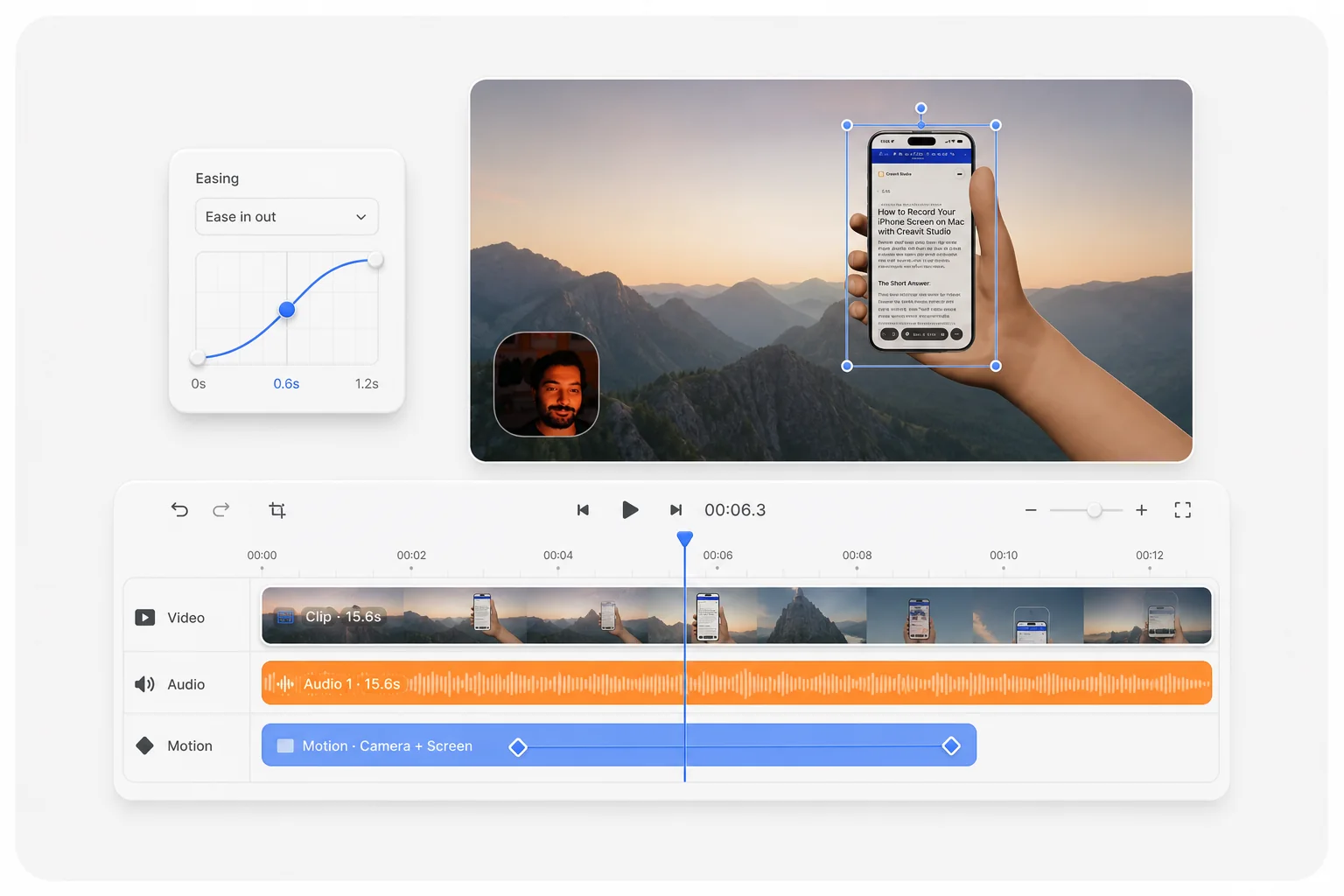
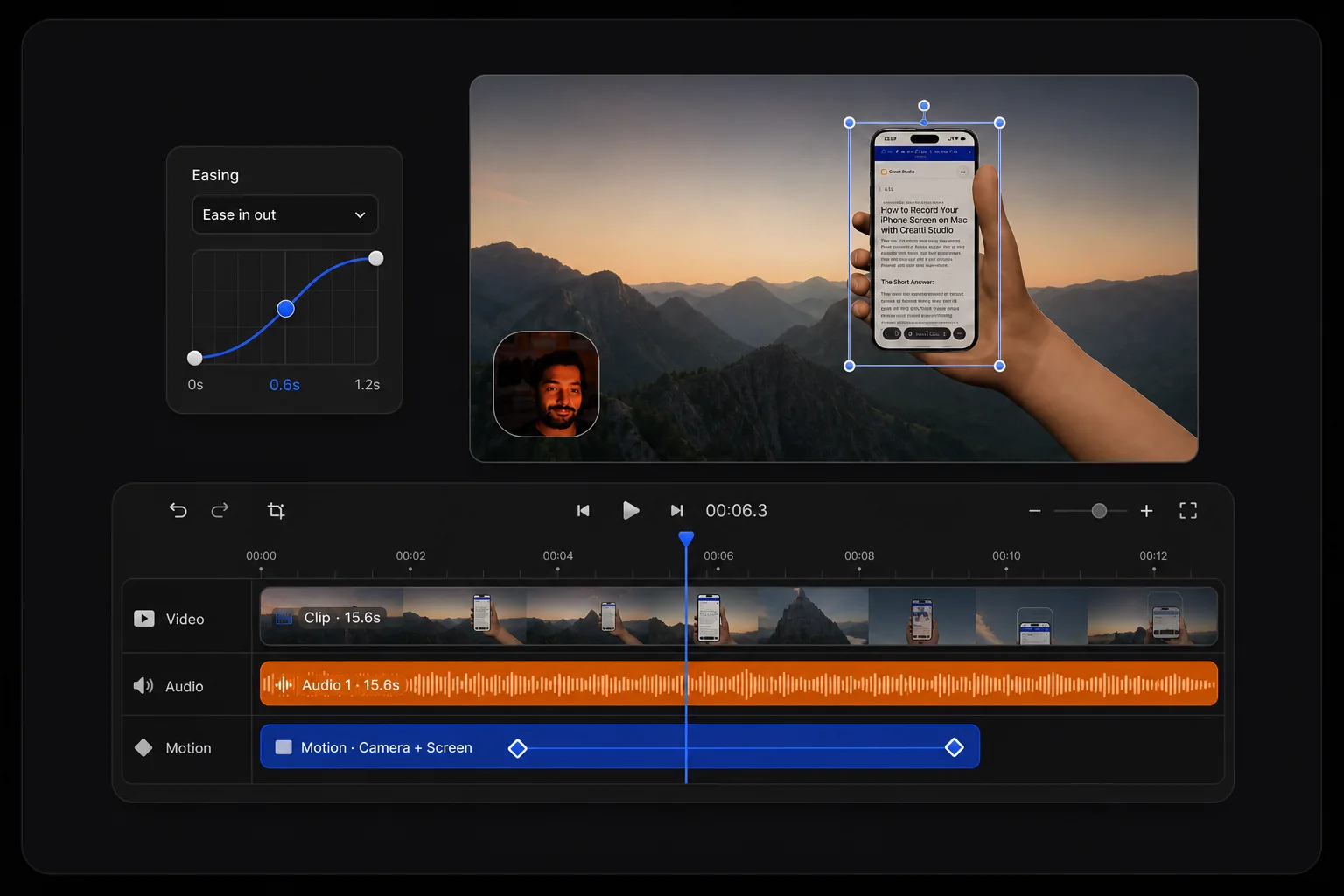
Design animated titles, shapes, images, and video clips on a dedicated motion canvas, then bring them into your screen recordings. Build polished animated sequences with layers, transform controls, timelines, and reusable motion templates—without leaving the Creavit Studio workflow.

Ask the built-in agent panel for a change, or drive the app from Claude Code, Codex, or Cursor over the open MCP server — zooms, cuts, privacy masks, motion, recording, and export.
Background → Custom → None
Smoothly zoom the screen toward important UI so viewers follow the story—without jumpy cuts or a separate motion tool. Editable zoom keeps attention on what matters after capture, so tutorials, demos, and launch videos read clearly on a single macOS timeline—no round-trip to another editor for pacing.
Make pointer movement and clicks easy to read on screen captures—ideal for product demos and engineering walkthroughs. Highlight the cursor for training and sales recordings; clearer click feedback means you spend less narration repeating where to look on the interface.
Remove the webcam background in the editor after capture for a clean talking-head cutout on macOS. Creavit Studio skips gimmicky real-time virtual backgrounds while you record. When you are done, strip the backdrop from the camera clip in-editor and ship a crisp subject silhouette in the final export.
Resize and position the webcam against the screen so the layout matches demos, tutorials, or talking-head moments. Switch layout presets and balance camera size with screen real estate—one coherent frame for onboarding clips, changelog videos, and creator content without leaving the recorder.
Add depth and editorial framing so flat UI captures feel closer to polished product marketing—not a raw screen grab. Perspective-style framing helps interface storytelling read intentional: viewers track hierarchy faster, which matters for SaaS launches, changelog videos, and investor-ready demos.
Drop titles, callouts, and code context next to the interface for tutorials, walkthroughs, and product explainers. Deliver context when viewers need it—not after they are lost. Layer readable emphasis for developer content so narration, cursor, and text reinforce the same beat.
Stack graphics, short clips, and supporting visuals wherever the edit needs them—without a separate compositing app. Bring reactions, logos, and motion layers into frame while keeping the screen readable. The result feels closer to branded product video than a flat capture.
Design animated titles, shapes, images, and video clips on a dedicated motion canvas, then bring them into your screen recordings. Build polished animated sequences with layers, transform controls, timelines, and reusable motion templates—without leaving the Creavit Studio workflow.
Open MCP server
Connect Claude Code or Codex to Creavit Studio and describe the recording or edit you need in plain language.
Use Claude Code or Codex from the terminal you already work in. Creavit exposes its real recording and editing tools through MCP.
Record a flow, operate the cursor and keyboard, add zooms or sensitive-area blur, and export without a manual handoff.
Last login: today on ttys004
~/Projects/creavit
▍See the agent work inside Creavit
Start for free. Pay monthly, save with a year, or make it yours for life.
One app for recording, editing, motion, and AI.
Find your creative flow.
Try the studio before choosing your plan.
Monthly Plan
Billed monthly. Cancel anytime.
Best value. Pay yearly and save.
Works out to $4.16/month, billed yearly. Cancel anytime.
Lifetime Plan
One-time payment. Lifetime access, no subscription.
One license. Up to five Macs. 14-day money-back guarantee.

Record your screen, shape the story, and bring it to life. Your entire creative studio, right on your Mac.
Everything about pricing, licensing, updates, and system requirements in one place.
Creavit Studio uses native screen recording APIs for high-quality captures with system audio, enables perspective and cinematic clip effects, lets you remove backgrounds from camera video after recording, and combines auto smart zoom, cursor styling, timeline editing, and export—all in one streamlined macOS app. No need for separate tools from capture to polished video.
Yes. The lifetime plan can be used on up to 5 compatible Mac devices tied to the same license.
Yes. You can download the current macOS build today, try the app without signing up, and try 5 free exports, and upgrade for unlimited exports.
Yes. The editor has a built-in Agent panel that runs the Claude Code or Codex CLI already installed on your Mac, and the app ships an open MCP server (creavit-studio-mcp) so Claude Code, Codex, Cursor, or any MCP client can drive it from your terminal. Adding it takes one command (claude mcp add creavit-studio -- npx -y creavit-studio-mcp), then you can ask for zooms, cuts, privacy masks, motion scenes, recordings, or an export. The MCP bridge runs locally on your Mac. The connected AI provider handles any context you choose to send according to its own settings.
Your recordings stay on your Mac. Creavit Studio does not depend on uploading projects to the cloud to let you record, edit, or export.
The roadmap focuses on deeper editing workflows, more AI-assisted production tools, and broader export and content-format options while keeping the app lean and fast.
Creavit Studio is available for Apple Silicon and Intel Macs. Choose the matching build on the download page.
If you have an active Paddle billing relationship, you can manage invoices and billing details through the customer portal. Lifetime purchases do not require an ongoing subscription to keep using the app.