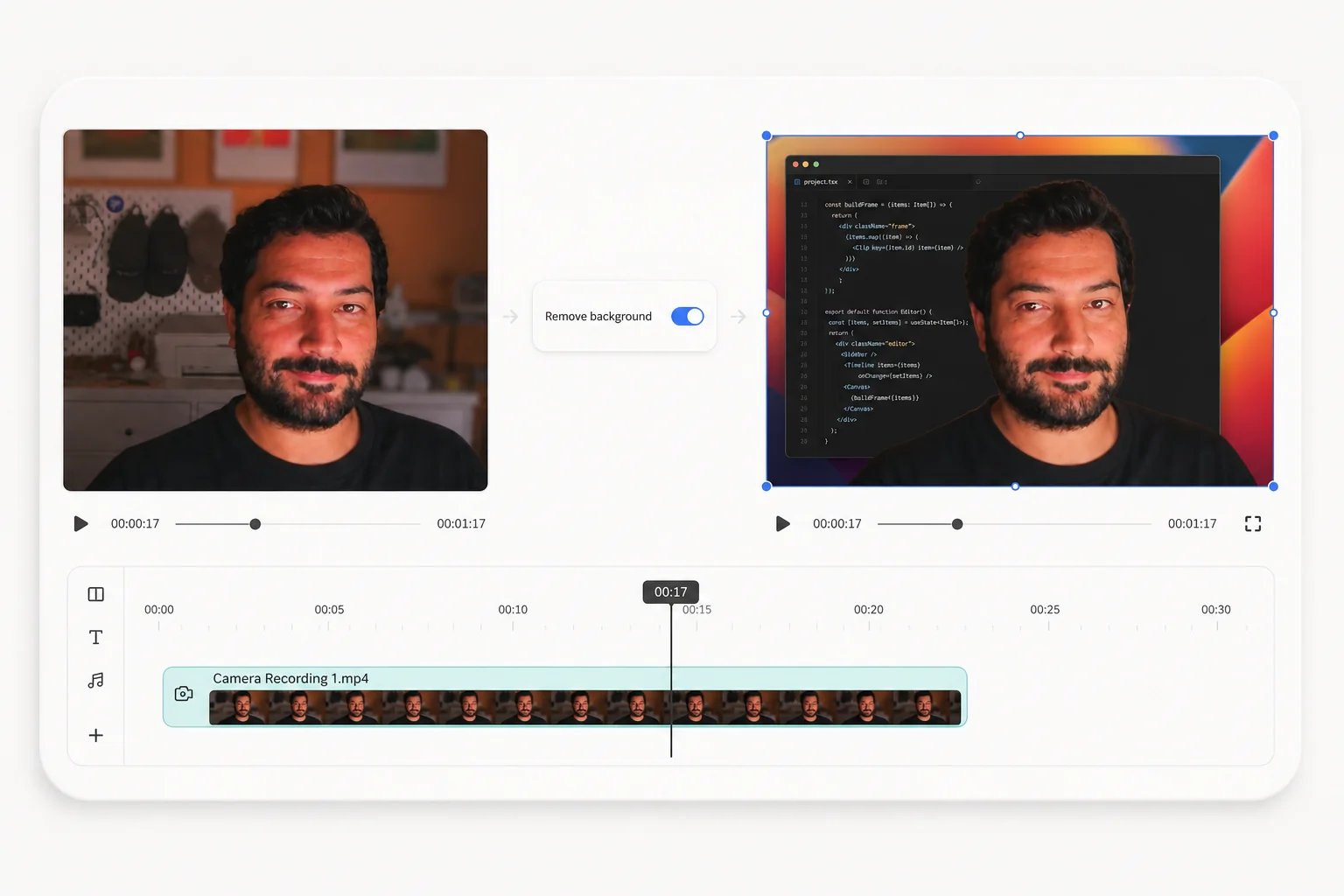
Can you remove the webcam background after recording?
Yes. Creavit Studio records the screen and camera as separate layers. You can record first, then select the camera clip in the editor and apply background removal. That lets you compare the original camera image with the cutout before exporting. The effect is applied in the editor; it does not erase your room from the source camera recording.
Record a clean camera layer
- In Creavit Studio, select the screen, window, or area you want to capture.
- Enable your camera and choose your microphone. Add system audio only if the lesson or demo needs it.
- Place your camera where it does not cover controls or text, and record a short test clip.
- Check that your face stays inside the frame when you turn or gesture, then record the full take.
For the complete capture setup, see how to record your screen with a webcam overlay.
Remove the background in the editor
Open the recording in Creavit Studio's editor and select the camera clip. In the camera/background controls, enable background removal. Preview a few difficult frames, especially where hair, glasses, hands, or a chair overlap the room. Adjust the camera size and placement on the canvas, then export a short sample before exporting the whole video.
You can keep the screen as the main layer and place the cutout presenter over a corner, or use a larger camera layout for an introduction. If the effect does not look right for a particular clip, disable it and use the original camera layer.
Improve the cutout before editing
- Light your face from the front or side. A bright window behind you makes the subject darker and edges harder to separate.
- Leave space around your head and hands. Avoid cropping them at the camera frame edge.
- Choose some contrast. Clothing close to the wall color can make the outline less distinct.
- Check motion. Fast gestures and motion blur can make any background removal edge look less stable.
Background removal is a visual effect, so inspect the exported sample at its intended viewing size. A clean original camera overlay can be better than a rough cutout.
When should you keep the original background?
Keep it when the room is part of the demonstration, your lighting is poor, or the edge quality distracts from the screen. A simple rectangular camera frame also works well for interviews and lessons. For layout choices, see the camera background removal feature and webcam recording guide.