Which Screen Studio alternative should you choose?
Choose Creavit Studio for an editable Mac product video with motion graphics and local export. Consider Tella for presentation-style videos and hosted sharing, Loom for quick video messages, OBS for live production and free recording, or Descript when editing spoken content as text is central to your process.
Screen Studio itself remains a useful option for polished screen recordings. Its official product page describes automatic and manual zoom, editable cursor presentation, USB iPhone recording, subtitles, and video/GIF export. Switching makes sense when another workflow solves a specific problem for you, not simply because a comparison table has more checkmarks.
This guide is written by Creavit Studio. Competitor descriptions are based on the official pages linked below, reviewed on September 22, 2026. They are not a claim that we benchmarked every app on the same Mac. Plans and capabilities can change; export a representative sample before choosing.
Compare the job before the feature list
| Your main job | Shortlist | What to check first |
| A polished product demo | Creavit Studio, Screen Studio | Zoom framing, readable UI, cursor treatment, and editable output |
| A presentation or course introduction | Tella, Creavit Studio | Camera/screen composition and how you revise a take |
| A quick message to a teammate | Loom, Tella | Share links, viewer experience, and permission controls |
| Streaming or multiple live sources | OBS | Scene setup, audio routing, and stream requirements |
| A narration-heavy explainer | Descript, Creavit Studio | Transcript corrections, cuts, subtitles, and audio review |
1. Creavit Studio: recording, editing, and motion on Mac
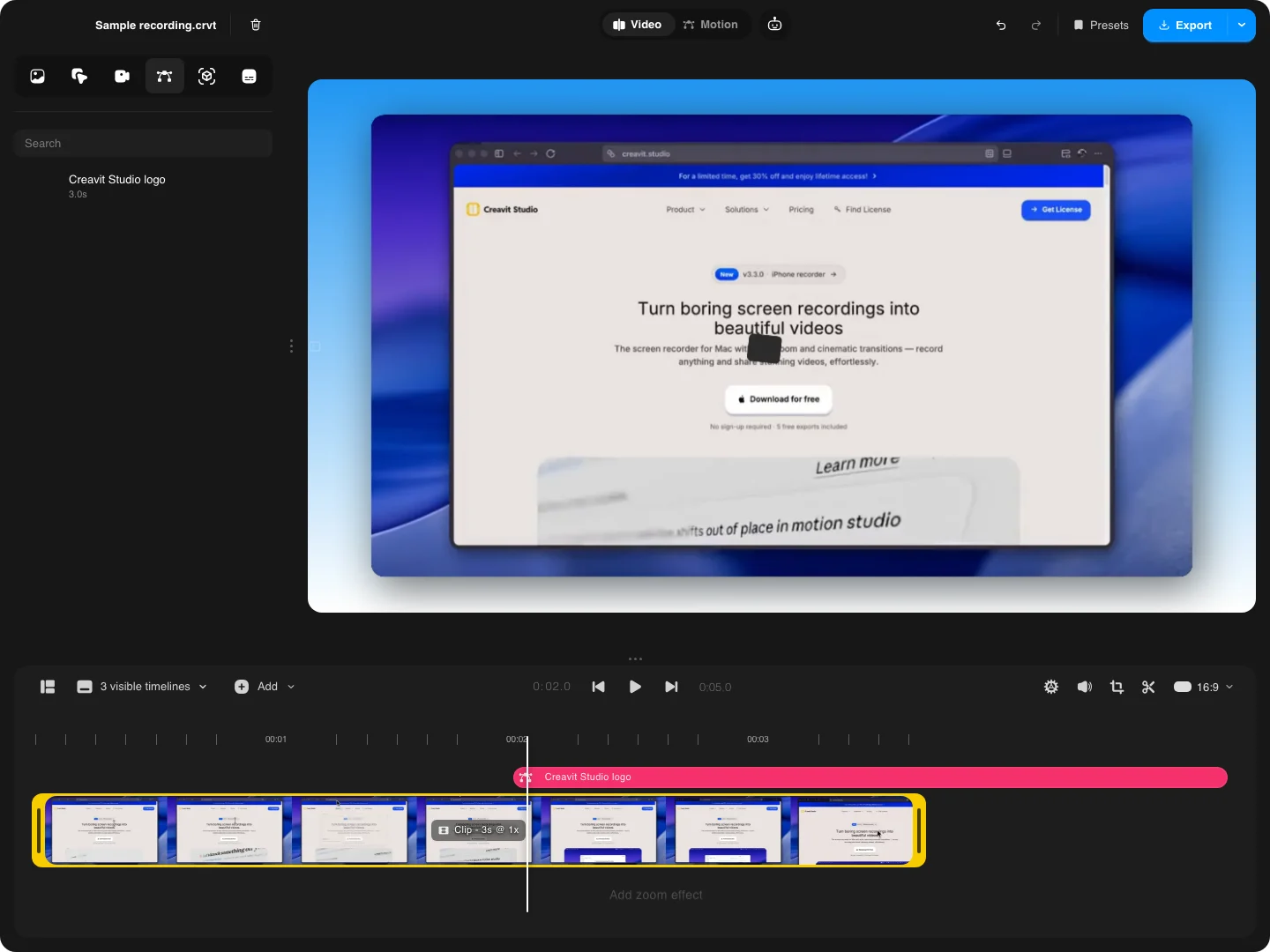
Creavit Studio brings screen capture and visual editing into one desktop workflow. Record a display, window, area, or connected iPhone; then refine the recording with zoom, cursor styling, camera layouts, overlays, and timeline edits. A finished composition can include more than the original screen rectangle.
The free Motion Editor is useful when a demo needs an animated opening title, a feature card, or a closing message. It has a canvas, editable layers, animation actions, and its own export workflow. You can use a motion scene alone or save it into the video editor.
Choose it when: you want a reusable project on your Mac, custom presentation around the recording, and a direct path from a screen capture to a launch video.
Check before choosing: standalone motion creation is free; the screen recording editor has a trial export allowance and paid export plans. Compare the current monthly, yearly, and lifetime options on pricing. If your team needs a hosted review platform, decide where you will share the exported video.
2. Tella: presentation and sharing workflows
Tella combines screen/camera recording with layouts, zoom effects, subtitles, transcript editing, and link sharing. It is worth considering when the deliverable is a hosted presentation-style video and you want to move between recording, editing, and sharing in that environment.
Choose it when: the share-link experience and presentation layout matter as much as the downloaded file.
Check before choosing: compare your required export, hosting, and workspace features against the current plan. Use our Creavit vs Tella comparison to examine the local-editing and hosted-sharing tradeoff.
3. Loom: quick asynchronous video messages
Loom is built around recording and sharing video messages. For a bug explanation, a review, or a short update, getting a watchable link to a colleague can matter more than building a visual composition.
Choose it when: you need frequent messages with minimal production work.
Check before choosing: the current plan limits, viewer access, retention, and the editing controls you need. A team-message workflow and a public launch-video workflow do not necessarily need the same tool. Our Loom alternatives guide separates those jobs.
4. OBS: free recording and live production
OBS Studio is free, open-source software for recording and live streaming. Its scene/source model is useful when you need to combine inputs and manage the capture before or during the session.
Choose it when: streaming, source composition, or a no-cost recording setup is the priority.
Check before choosing: plan the editing step after capture. OBS is not a replacement for a dedicated post-production timeline. For system audio on recent Macs, follow the version-specific OBS guide; a separate virtual audio driver is not universally required.
5. Descript: edit the spoken story
Descript centers its editing workflow on text and spoken media. It belongs on the shortlist when the hard part is shaping narration, interviews, or a longer explanation rather than framing a few product interactions.
Choose it when: revising the words is the central editing task.
Check before choosing: the supported media, transcription allowance, export plan, and whether your project needs specialized cursor or screen-framing controls. Correct the transcript before relying on it for captions or editorial decisions.
Try the same short project in your finalists
Use a real 30-second task: open a menu, enter a search, show the result, and explain why it matters. Include one mistake so you can assess how each editor repairs it. Use the same recording dimensions and destination format to make the comparison meaningful.
- Capture: can you select the intended screen, camera, and audio sources without surprises?
- Edit: can you remove the mistake without clipping a word or hiding the result?
- Direct attention: are the menu, cursor, and result readable at the final playback size?
- Export: does the file play correctly where you will publish it?
- Revise: can you reopen the project and change one label without starting again?
Do not compare only the editor preview. An export can reveal tiny text, an oversized cursor, clipped audio, or a layout that looked fine on your large display. Our product demo workflow provides a practical starting project.
Common questions
Is there a free Screen Studio alternative?
OBS is a free recording option. The built-in Mac Screenshot toolbar also records your screen. Creavit Studio offers a trial for video recording/editing exports and a separately free Motion Editor. These are different free workflows, so choose according to what you need to produce.
Do all alternatives include automatic zoom?
No. Verify automatic zoom, manual framing, and cursor behavior in the app you are considering. A recording tool can be excellent at sharing or streaming without providing that particular editing workflow.
Will my existing project remain editable in another app?
Do not assume project files are interchangeable. An exported video is useful for further editing, but it normally does not carry the original app's editable cursor, zoom, or layer controls. Keep the original project while you evaluate a replacement.